
Mazda 6 Owners Manual: Receiving and Replying to Messages (available only with E-mail/SMS compatible phones)
SMS (Short Message Service) messages, and E-mail received by connected devices can be downloaded, displayed, and played (read by the system).
Additionally, replies can also be made to calls and messages in the received messages.
Downloading messages
Up to 20 new messages can be downloaded and displayed from a connected device.
NOTE
For E-mail, 20 messages for each account can be downloaded.
(Automatic downloading)
The “Auto Download Email” (E-mail) or “Auto Download Text Message” (SMS) setting must be on. A message is downloaded automatically when the Bluetooth® unit is connected to the device.
Refer to Communication Settings.
(Manually downloading)
When the “Auto Download Email” (E-mail) or “Auto Download Text Message” (SMS) setting is off, the message is downloaded using the following procedure.
1. Select the  icon on the home
screen to display the Communication screen.
2. Select  or
or
 to display the Inbox.
3. Select  .
.
4. Download will be started from the mobile phone.
NOTE
- Attached data is not downloaded.
- Messages up to 1 kilobyte (E-mail)/140- bytes (SMS) can be downloaded.
- A message list is created for each device.
- If the connected device does not correspond to MAP 1.0, the AT command is used to download. The downloaded message indicates that it is already read.
- Downloading using the AT command may not function depending on the connected device.
Receiving messages
(Method 1)
When a device receives a message, a message received notification is displayed.
The “Email Notifications” (E-mail) or “Text Notifications” (SMS) setting must be on.
Refer to Communication Settings
Select  and display the message.
(Method 2)
1. Select the  icon on the home
screen to display the Communication screen.
2. Select  and display the new
message list for E-mail and SMS.
3. Select the message you would like to display.
The following icons are displayed in the lower part of the details on the message. Icons which can be used differ depending on use conditions.
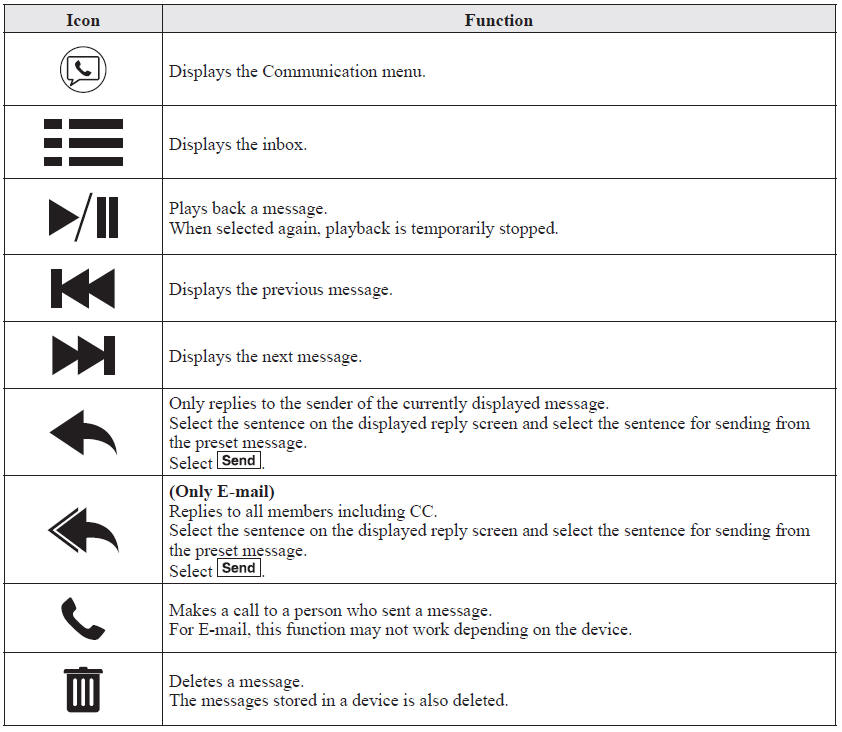
NOTE
Up to three preset messages can be selected.
Example of use (verify unread E-mail)
1. Select the  icon on the home
screen to display the Communication screen.
2. Select  to display the inbox.
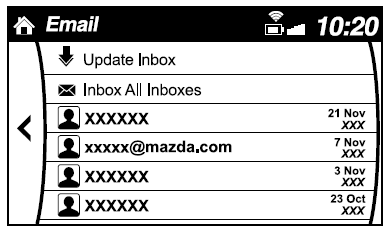
3. Select the unread message displayed in bold.
4. The details of the message are displayed and replying to the message, making a call, or playback can be performed.
Changing account for displaying (E-mail only)
1. Select  .
.
2. Select the account which you would like to display. Only the messages for the selected account are displayed in the inbox.
Editing preset messages
1. Select the  icon on the home
screen to display the Communication screen.
2. Select  .
.
3. Select  .
.
4. Select the preset message which you would like to edit. The keyboard screen is displayed.
5. When the message is input and
 is selected, the message is stored
as a preset message.
NOTE
- Select the
 icon to change
the language. - Select the
 icon to switch
between capitalized and lower-case characters. - Select the
 icon to return
to the previous screen without storing the edit.
 Call Interrupt
A call can be interrupted to receive an incoming call from a third party.
When is selected or the pickup
button on the steering wheel is pressed, the current call is held and the system
switches ...
 Communication Settings
Select the icon on the home
screen to display the Communication screen.
Select to change the setting.
*1 Depending on the device, it may be necessary to acquire download permission
on the de ...
Other materials:
Mazda 6 Owners Manual: Hazardous Driving
WARNING
Be extremely careful if it is necessary to downshift on slippery surfaces:
Downshifting into lower gear while driving on slippery surfaces is dangerous. The
sudden change in tire speed could cause the tires to skid. This could lead to loss
of vehicle control and an accident.
When dri ...
Mazda 6 Owners Manual: Rear seat disassembly/assembly
4SD
1. Disassemble in the order indicated in the table.
2. Assemble in the reverse order of disassembly.
5HB
1. Disassemble in the order indicated in the table.
2. Assemble in the reverse order of disassembly.
...